
Add to Calendar: AI Events
Turn screenshots and text into calendar events with AI
10 followers
Turn screenshots and text into calendar events with AI
10 followers
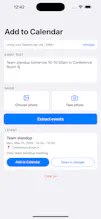
Paste text or snap a screenshot of a flyer, email, or ticket — AI extracts the title, date, time, and location and saves it to your calendar in one tap. Free 50/month with sign-in, or bring your own OpenAI key. No ads, no tracking.



One thing I'd love is recurring event support right now it seems built for single occurrences. A lot of what I paste from email threads is weekly standups or monthly meetups, and having to re-add them each time defeats the "one tap" promise.
@baranmy7v Great catch — you're right, today it creates single events only. The good news is the calendar side already supports recurrence rules, so this is mostly about teaching the extraction step to emit "every Tuesday 10am" instead of one date. Moving it to the top of the list — weekly standups pasted from email threads is exactly the workflow I want to nail. Thanks for grounding it in a real use case.
@baranmy7v Shipped! 🎉 Recurring events are live as of v1.0.3 — "team standup every Tuesday 10am" now becomes a real repeating event, with weekly/monthly patterns, custom intervals ("every other Wednesday"), and end dates. Works for both Apple Calendar and Google Calendar. Thanks again for the push — it was the first feature request after launch, so it got the first slot. Curious how it works for your case — tell me if anything feels off!
one thing i'd love to see is for it to save to specific calenders i.e. I have multiple calenders for home/work/school/life. I love this idea tho and it makes life a whole lot easier!
@ethan_cheng Thanks Ethan! Great timing — a calendar picker is very doable (the app already reads your calendar list to find the default one; letting you pick home/work/school from that list is a natural next step). Adding it to the roadmap next to recurring events, which another user requested on launch day. Quick question back: would you rather pick the calendar per event, or set one default target in settings?
@ethan_cheng This is live! Since v1.0.3 you can pick which calendar events save to — Settings › "Save events to", so work events can land on your work calendar. It's a default-calendar setting for now; if you find yourself wanting to choose per-event instead, tell me and that's the next iteration. Thanks for the request!
The snap-a-screenshot flow is such a smart move, way more natural than typing out details from a flyer. Love that it works with my own OpenAI key too.
@meliskellekci Thanks Melis! The BYOK path matters a lot to me — your key stays in the iOS Keychain and calls go straight from your phone to OpenAI, nothing through my servers. It also means unlimited extractions vs the free 50/month.
Screenshotted a concert flyer and it pulled the date, venue, and even the door time into my calendar without me fixing anything. Honestly wish I'd had this last week when I was typing out details from a wedding invite.
@enay1976741 Thanks Şenay! Wedding invites were literally the origin story for me. Nice bonus: if the invite has both a ceremony and a reception, it extracts them as separate events in one pass — curious how it does on your next one.
Finally a calendar shortcut that actually works on messy screenshots. Snapped a blurry concert flyer and it pulled the date, venue, and even door time without me retyping a thing.
@gzdegalerinpu0 That's great to hear — blurry flyers are the real stress test. If you ever hit one it misreads, I'd love to see it (minus anything private); failure cases directly shape the prompts.
The one-tap save after AI extraction is a small detail but makes the flow feel polished. No extra confirmation screens to slow things down.
@tlinyankucgwqo Thanks! That was a deliberate call — the bar to beat is "just type it manually," so every extra tap had to justify itself. The one screen you do get is the event card itself, so you can sanity-check the date before it lands in your calendar. Curious what you tried first — pasted text or a screenshot?