

An Easier Way to Build Flowcharts: From Text to Diagram with AI
Using AI to generate a flowchart can reduce what used to take an hour down to just 10 minutes. Whether you're a student organizing a study plan, a new employee drafting a workflow, or a small business owner standardizing internal processes, AI-powered flowchart creation can significantly boost efficiency.
That said, many people get stuck because they "don't know design" or feel that "the tools are too complicated." In reality, choosing the right AI flowchart tool solves most of these problems. For example, PicDoc is an online tool that requires no design experience at all. You simply enter a text description, and it automatically generates a clean, well-structured flowchart. You can download it instantly, making it fully aligned with what beginners actually need.

1.First, Understand What a Flowchart Really Is
Flowcharts generally fall into two categories: single-thread and multi-thread. Beginners often confuse the two, so let's clarify the difference in simple terms.
A single-thread flowchart has only one main path, with no branches or parallel steps. Its primary purpose is to clearly present a linear process from start to finish. A typical example would be a basic business workflow such as "Customer inquiry → Requirement confirmation → Proposal submission → Contract signing." This type of flowchart is ideal for scenarios with straightforward logic and fixed steps.
A multi-thread flowchart, by contrast, includes branches or parallel paths and is used to represent more complex processes. An example would be "User registration → Phone verification / Email verification → Registration completed."
Single-thread flowcharts have no branches and follow a simple logic, which makes them easier to create. Multi-thread flowcharts, because they involve parallel paths or decision points, require more advanced logical planning.
2.Four Core Steps to Create a Flowchart with AI
Using the beginner-friendly tool PicDoc as an example, the following steps break down the entire process. No design skills are required—just follow along and you'll have a finished flowchart in minutes.
Step 1: Define the Process and Organize Your Text Description
Start by listing all the steps of your process in order, either on paper or in a notes app. Use simple, clear language to describe each step. For example, a "Thesis Writing Process" could be organized as: Topic selection → Literature review → Outline creation → First draft writing → Revision and editing → Final submission.
Note: Keep each step short and specific. Avoid vague descriptions—for instance, instead of writing "prepare materials," use "review relevant academic literature." Clear wording helps the AI recognize the logic more accurately.
Step 2: Open the AI Tool and Start Editing
Open the PicDoc online platform and log in to access the "AI Text-to-Diagram" editor. This feature supports multiple chart types, including flowcharts, SWOT diagrams, and pie charts. If it's your first time using the tool, PicDoc provides a simple onboarding guide that walks you through the process and helps you generate a flowchart quickly.
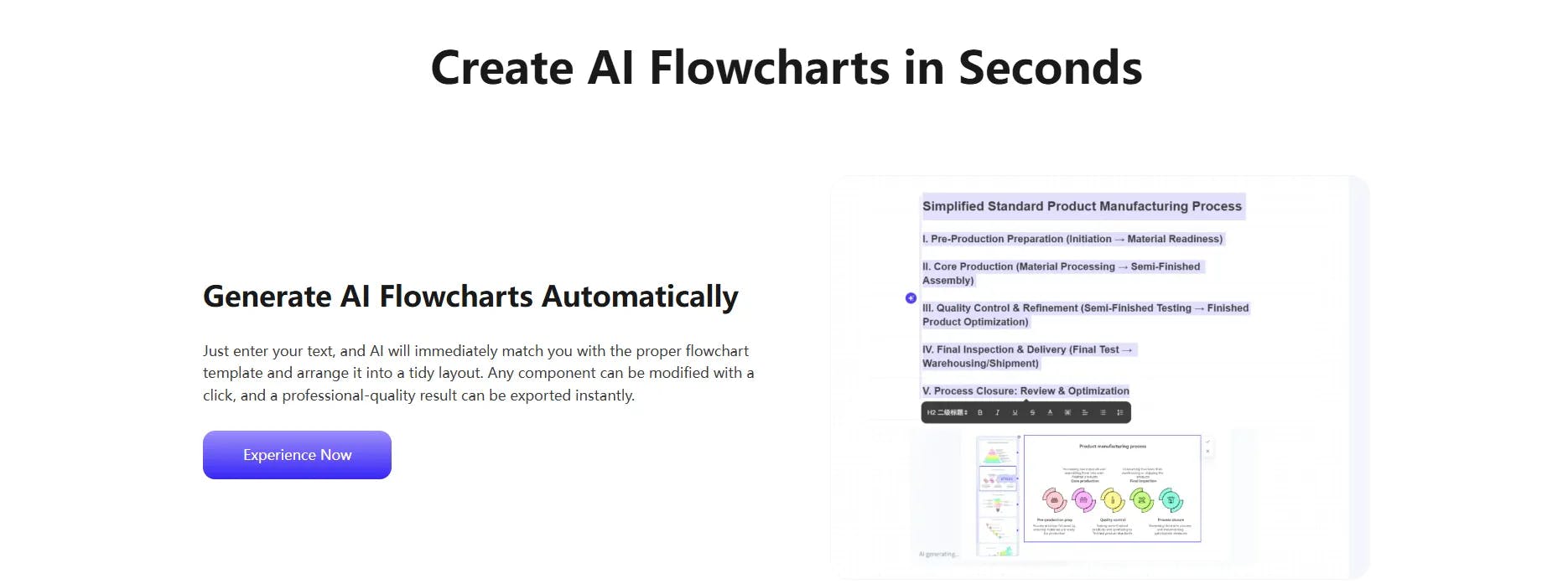
Step 3: Enter Text to Generate a Flowchart
Paste your prepared process steps into the editor. For example, you might enter:
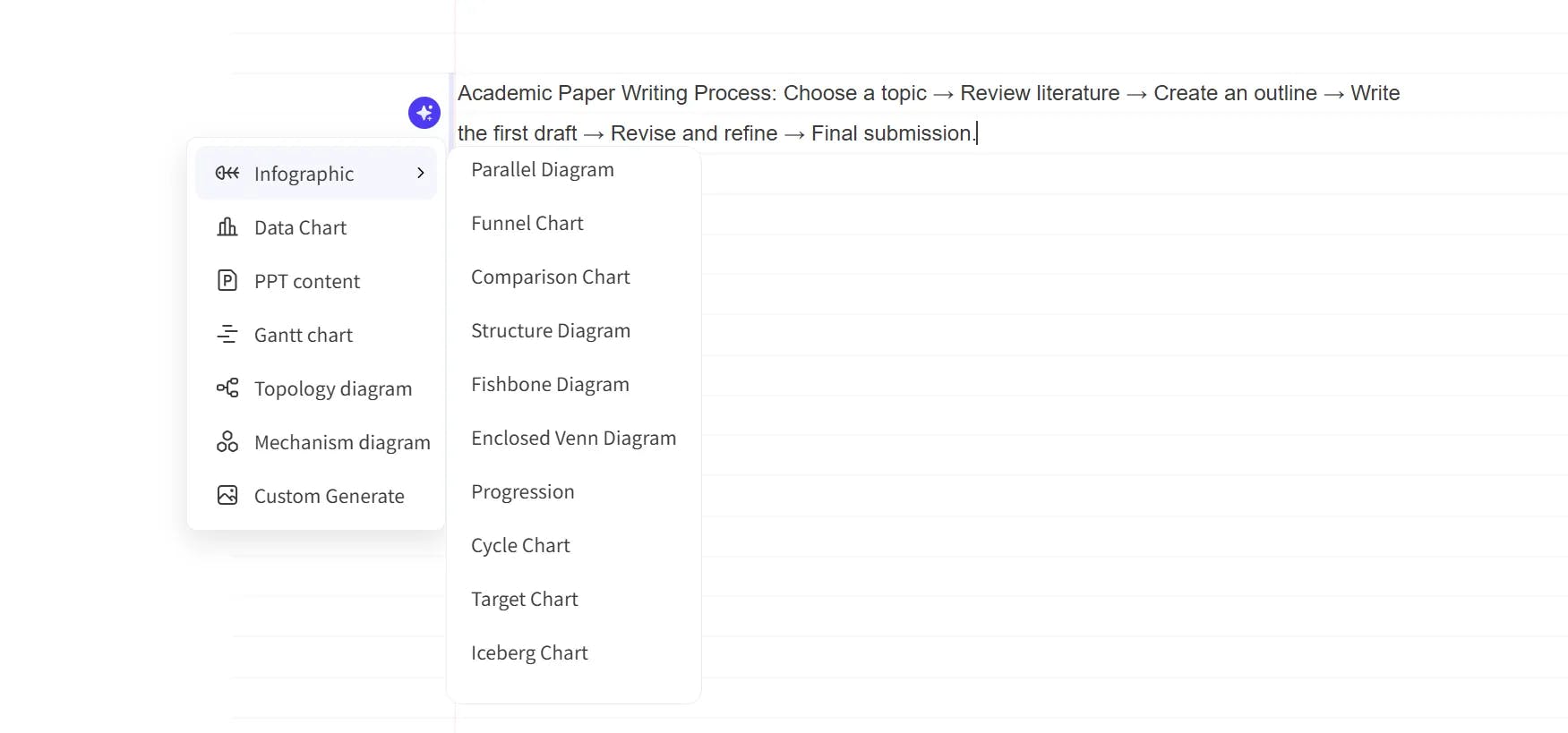
"Academic Paper Writing Process: Choose a topic → Review literature → Create an outline → Write the first draft → Revise and refine → Final submission."
When you hover your mouse over the blue button on the left side of the text, a list of chart types will appear.
Single-line flowchart:
Under the "Infographics" category, select "Progression".
Once selected, AI automatically recognizes the logical order of the steps and generates a clean, single-line flowchart within seconds. The result is concise, visually clear, and available in multiple styles, easy to understand and visually appealing.
Complex flowchart:
Choose "Mechanism Diagram" from the list. AI similarly analyzes the step logic and generates a standardized process mechanism diagram within about one minute. Different stages are automatically color-coded to show hierarchy, and visual elements are added so even complex workflows can be understood at a glance.
Step 4: Fine-Tune, Optimize, and Download
Single-line flowchart:
You can directly drag nodes, edit step text, or switch templates and styles, for example, changing a horizontal layout to a vertical one. Using the "Outline" feature, you can also add or remove steps as needed.
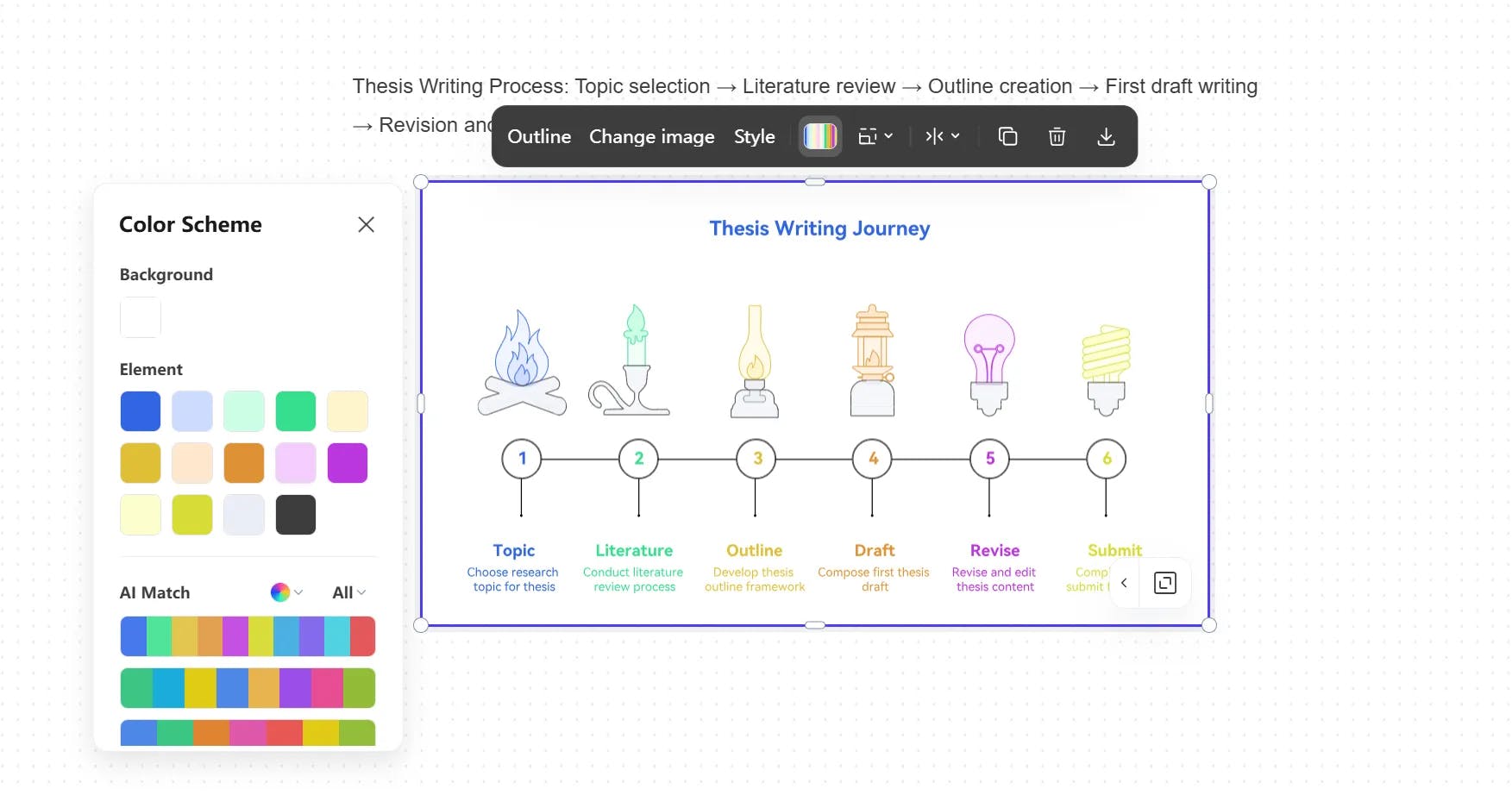
Complex flowchart: For this type of diagram, editing options are currently more limited. You can copy the flowchart or decide whether it's aligned left or right in the document.
Once everything looks right, click the "Download" button in the toolbar. The flowchart can be exported in multiple formats, including PNG, PDF, and PPT, making it ready for use in reports, proposals, or academic assignments.
3.Industry Use Cases: Flowchart Examples Across Four Common Scenarios
Flowcharts are widely used across industries. Below are four cross-industry scenarios that can all be quickly created using the AI method described above:
Scenario 1: Workflow for New Employees' Work Reports
Text description: Collect work data → Organize key reporting points → Draft the report document → Review and revise → Submit to supervisor.
After generating the flowchart with PicDoc, it can be directly inserted into a presentation deck, making the logic clear and easy to follow.
Scenario 2: Content Publishing Workflow for New Media Teams
Text description: Topic selection → Content writing → Visual and layout design → Proofreading and review → Publish online.
This flowchart is ideal for small and mid-sized teams to standardize content production and reduce the risk of missing key steps.
Scenario 3: Student Laboratory Experiment Workflow
Text description: Prepare experimental equipment → Review experiment procedures → Conduct the experiment → Record experimental data → Write the lab report.
This helps students clearly understand experimental logic, while improving efficiency and operational safety.
Scenario 4: Client Onboarding Workflow for Small Businesses
Text description: Client inquiry → Requirement discussion → Proposal delivery → Price negotiation → Contract signing.
This flowchart is well-suited for sole proprietors and small businesses to standardize client communication and present a more professional image.
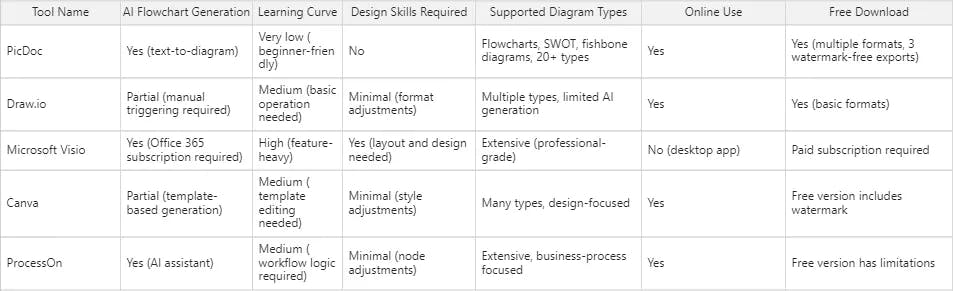
4.Tool Comparison: A Side-by-Side Review of Five Popular AI Flowchart Tools
Summary:
For beginners or non-design users, PicDoc is the recommended choice. It has virtually no learning curve, delivers fast AI flowchart generation, and its free features are more than sufficient for everyday use. Professional users may consider tools like Visio or ProcessOn, which offer more advanced functionality but come with a steeper learning curve.
5.Common Mistakes: 3 Pitfalls to Avoid When Creating Flowcharts with AI
Mistake 1: Vague or Confused Text Descriptions
For example, inputting "Do project → Prepare materials → Meeting" without proper sequence or clear wording may lead to a flowchart where the step labels are confusing.
Solution: List steps in order—"Step 1 → Step 2 → Step 3"—and describe each step with concise, clear phrases.
Mistake 2: Adding Unnecessary Elements
A flowchart's core purpose is to show linear logic. Some people add extra branches or decorative elements, which can obscure the main process.
Solution: Keep only the main steps and avoid overcomplicating the diagram.
Mistake 3: Not Fine-Tuning After Generation
Sometimes AI-generated flowcharts may have incomplete labels, overlapping text, or minor layout issues. Using them without adjustment can harm readability.
Solution: After generation, review the flowchart and use PicDoc's editing features to reposition text boxes or adjust step descriptions as needed.
Conclusion
Flowcharts are one of the most commonly used tools in both work and study. Replacing manual drawing with AI not only saves time but also ensures that your process logic is organized and standardized.
If you've ever avoided creating a flowchart because you "can't design" or felt that "the tools are too complicated," it's worth trying AI Text-to-Diagram tools. Simply enter a flow of text, and you can instantly generate a usable flowchart with zero technical barrier.
Open an AI Text-to-Diagram tool now and create your very own flowchart in minutes!
Originally published on the PicDoc blog: How to Create a Flowchart Quickly with AI: A Step-by-Step Guide
Reposted here with permission.
Replies