


5 ways to get the most out of SendReady (tips from the maker)
Hey SendReady users! 👋 I'm the maker of SendReady. Here are 5 tips to get the most out of the app:
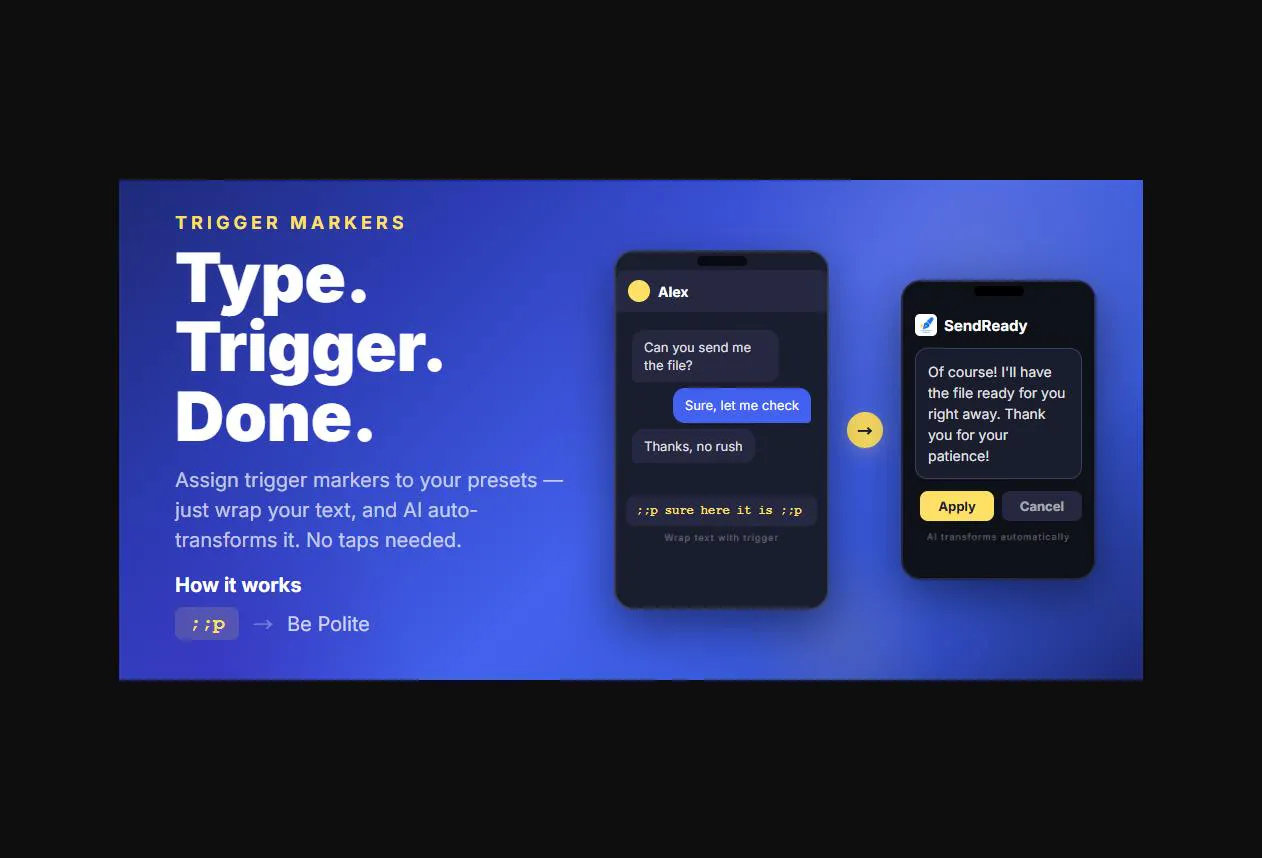
Use Trigger Markers for your fastest flows
Instead of tapping the floating button, wrap your text with a trigger you set in your preset. For example, set ";;p" as a trigger for your "Be Polite" preset, then type: ;;Can we reschedule the meeting?;; — SendReady transforms it automatically, no tap needed.
Create a "Casual → Formal" preset for work messages
Set up a custom preset with the instruction: "Rewrite this in a polite, professional tone suitable for a business email." Use it any time you're dashing off a quick message to a client or manager.
Use the custom prompt for one-off tasks
Don't create a preset for everything — if it's a one-time thing (like translating a single paragraph to French), just tap SendReady and type your instruction directly. No preset needed.
Stack it with your email or chat app's draft feature
Write your rough draft first, then select all and run SendReady. It's faster than editing manually and the result lands right back in your text field.
Set up language-specific presets if you're multilingual
If you regularly switch between languages, make dedicated presets: "Translate to English", "Translate to Japanese", "한국어로 번역" etc. Saves time vs. typing the instruction every time.
---
What tips or workflows have you discovered? Drop them below — I read every reply! 🙏
Replies